

Robot Settings
You can set the general functions and use the environment of the robot.
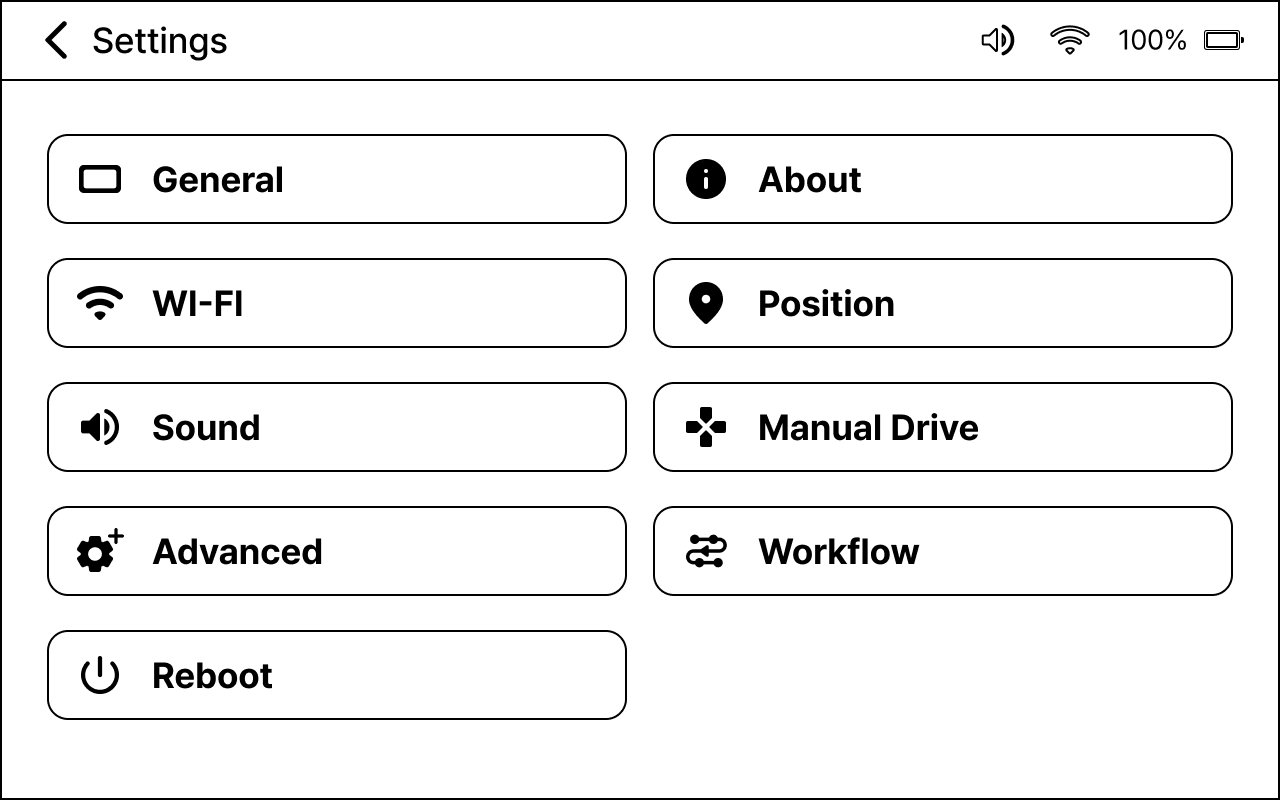
Settings
-
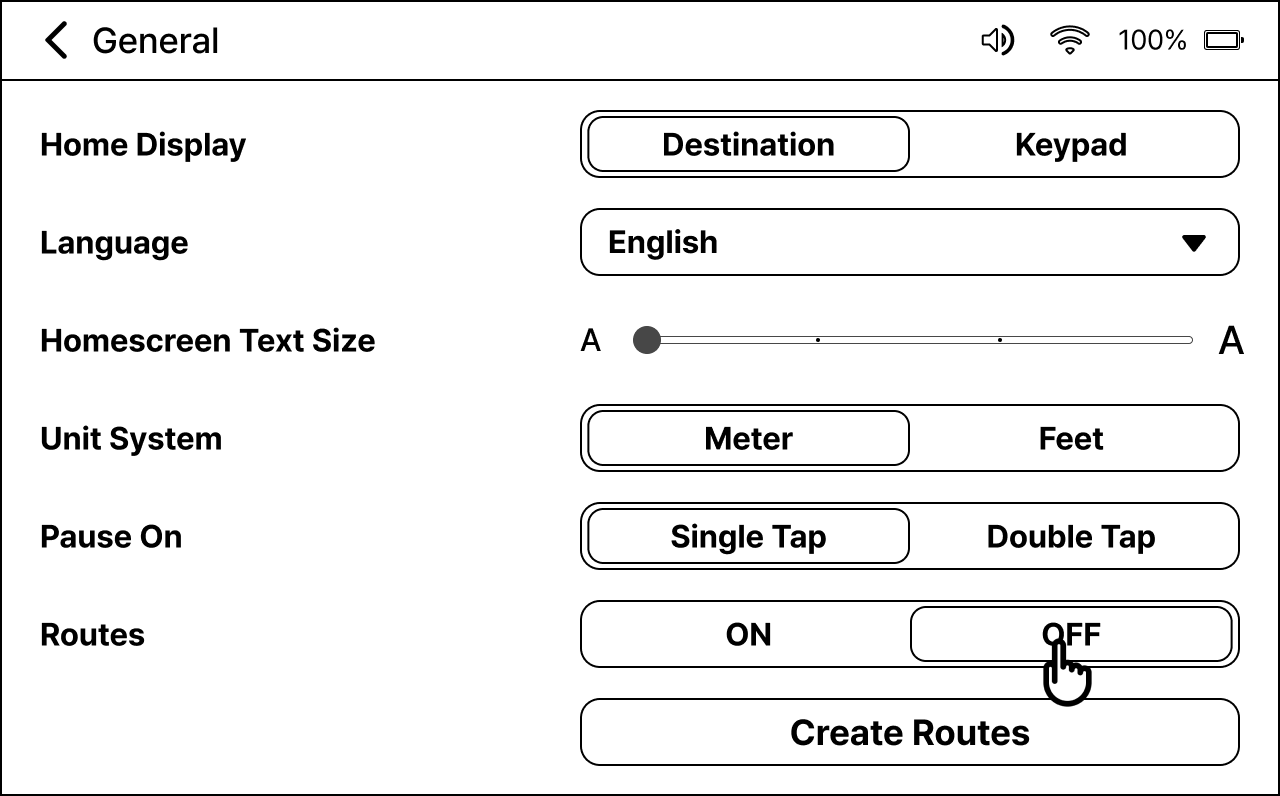
Set how the Home screen should appear.
Destination: Displays the destination name.
Keypad: A number pad is displayed so that you can enter the name of the table.
-
You can change the display language. English, Japanese, and Korean are available.
-
Set Pause on during robot movement.
Single Tap: If you touch the screen once, the robot pauses.
Double Tap: If you touch the screen twice in a row, the robot pauses.
-
Set frequently used routes.
About
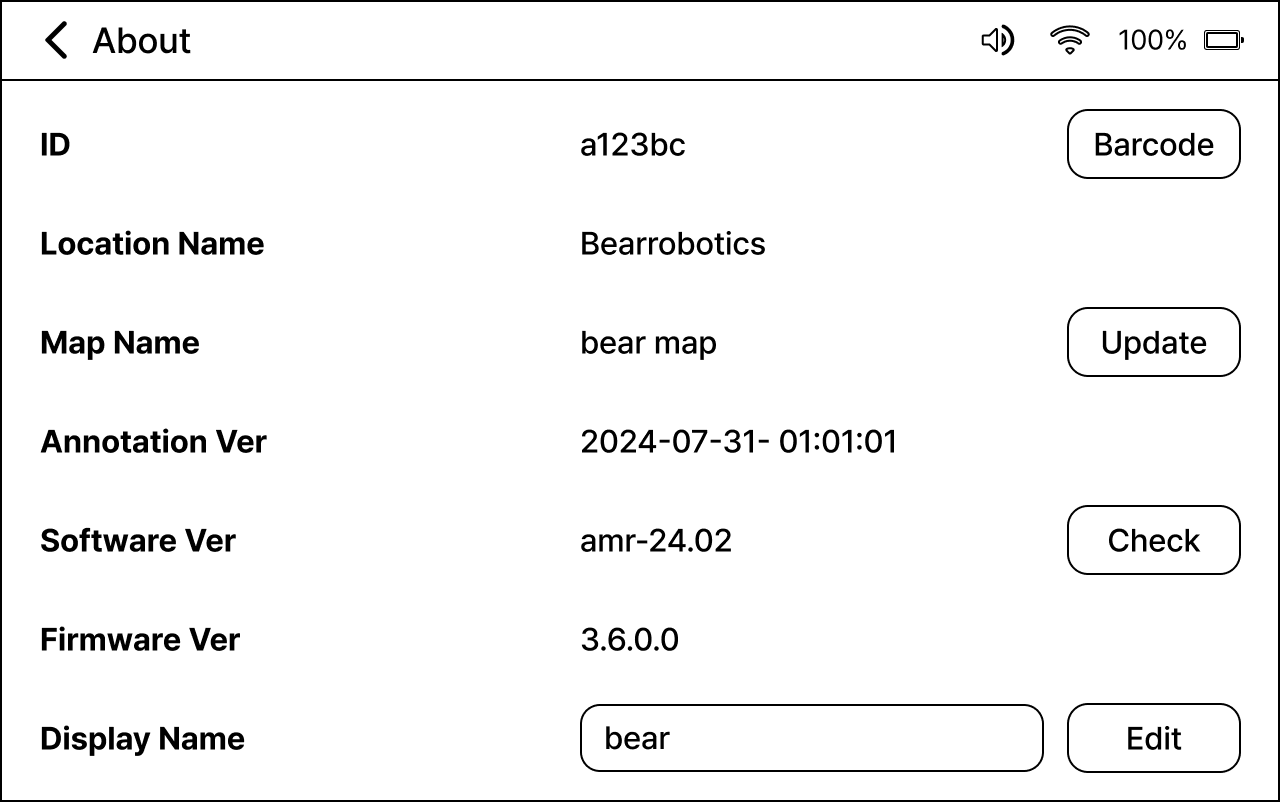
You can check the robot information, such as the specifications of the software and hardware installed in the robot and the locations and maps set on the robot.
You can rename the robot by pressing Change right next to the robot’s name.
Wi-Fi
You can check the Wi-Fi connections enabled with the robot.
Press the Wi-Fi you wish to use from the list, enter the password, and press JOIN.

Maunal Position

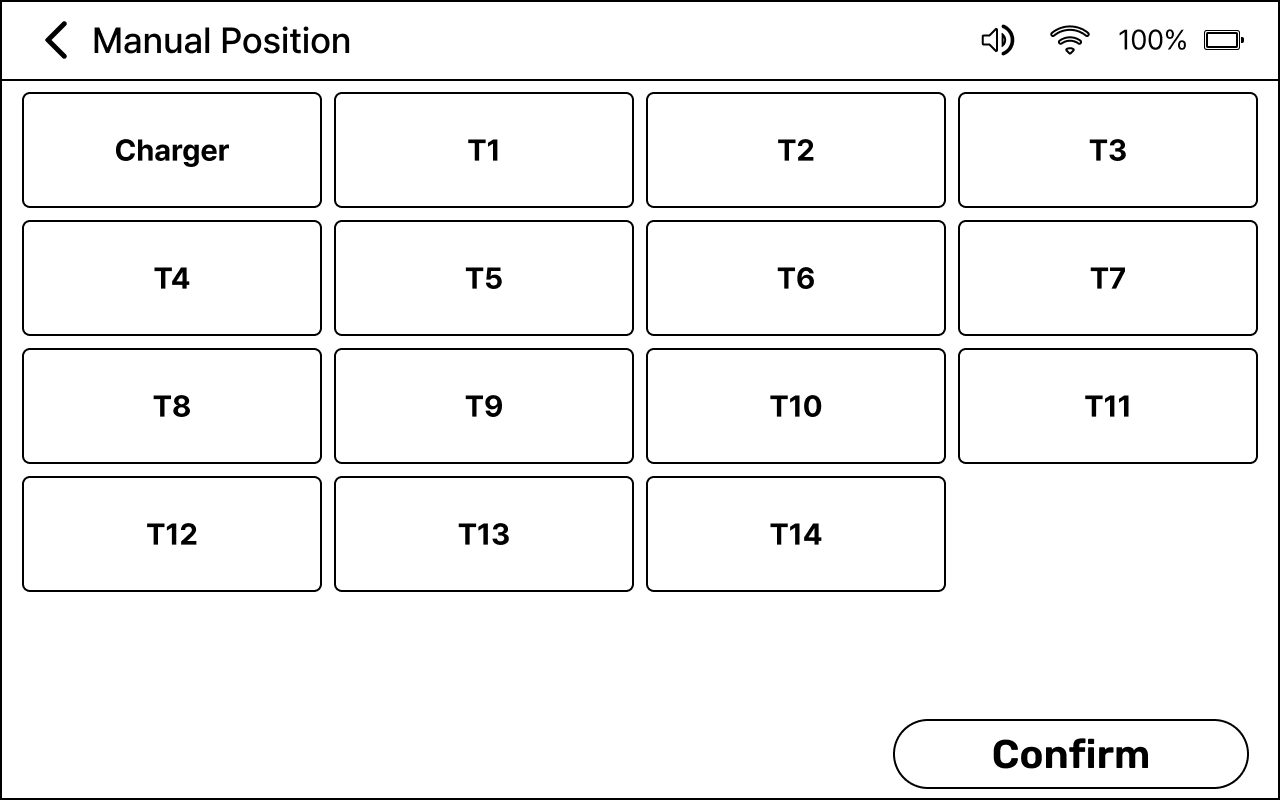
This feature is used to reset the destination location. When relocating the robot, make sure to relocate it in the same destination and direction (as set by our installation engineer) to ensure relocation accuracy.
For quick repositioning, long-press the destination on the home screen, and the robot will relocate.
Sound
Contextual voice prompts are defined. You can check and adjust the robot movement sound and message volume.

Also, you can display a popup by pressing and holding the sound icon in the top bar of the touch screen, where you can adjust the movement sound and message volumes.
Manual Drive
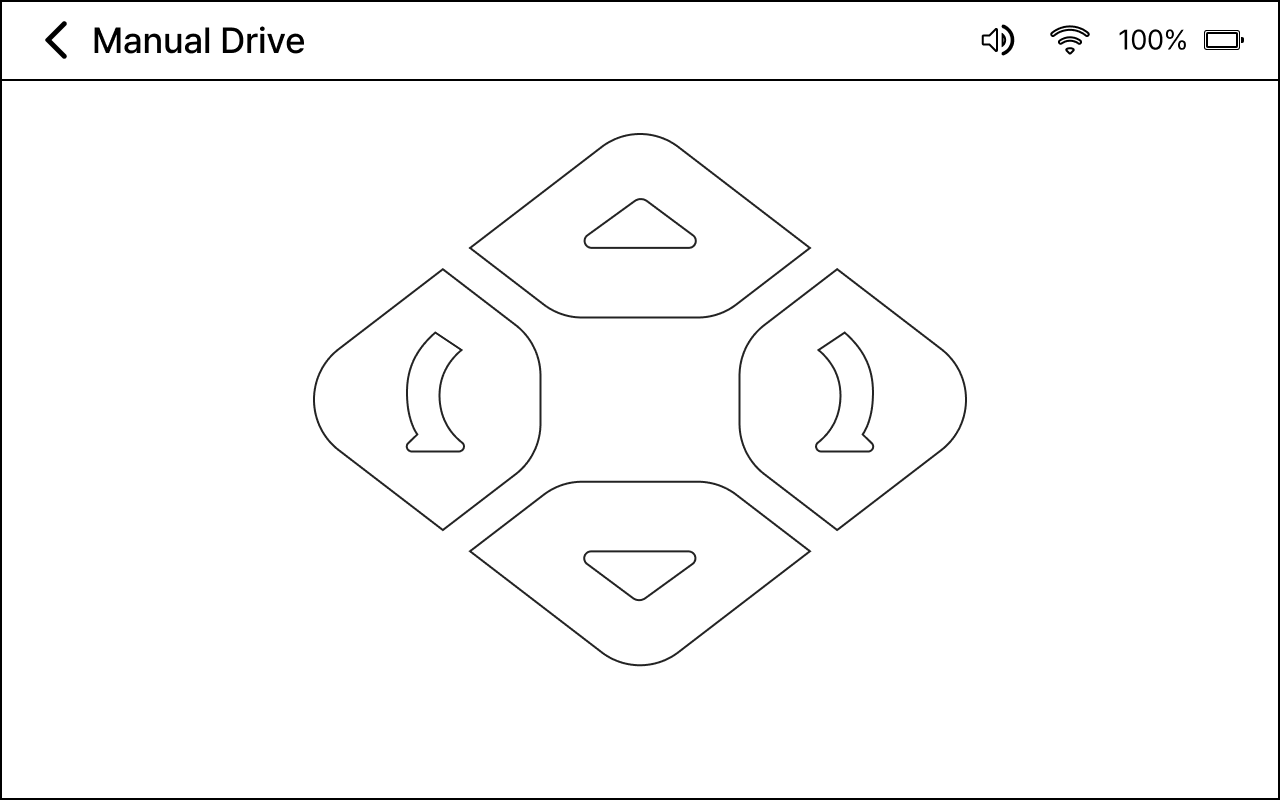
You can manually operate the robot by using the arrows displayed on the screen and/or pushing and moving the robot with your hands. Also, when the robot's wheels are locked, you can use manual drive to move the robot to the desired location.
[Caution]
When pushing the robot with your hands, be careful not to touch the tray part.
Robot Workflow
For detailed information on robot workflow, refer to Robot Workflow in How to Use.

Advanced
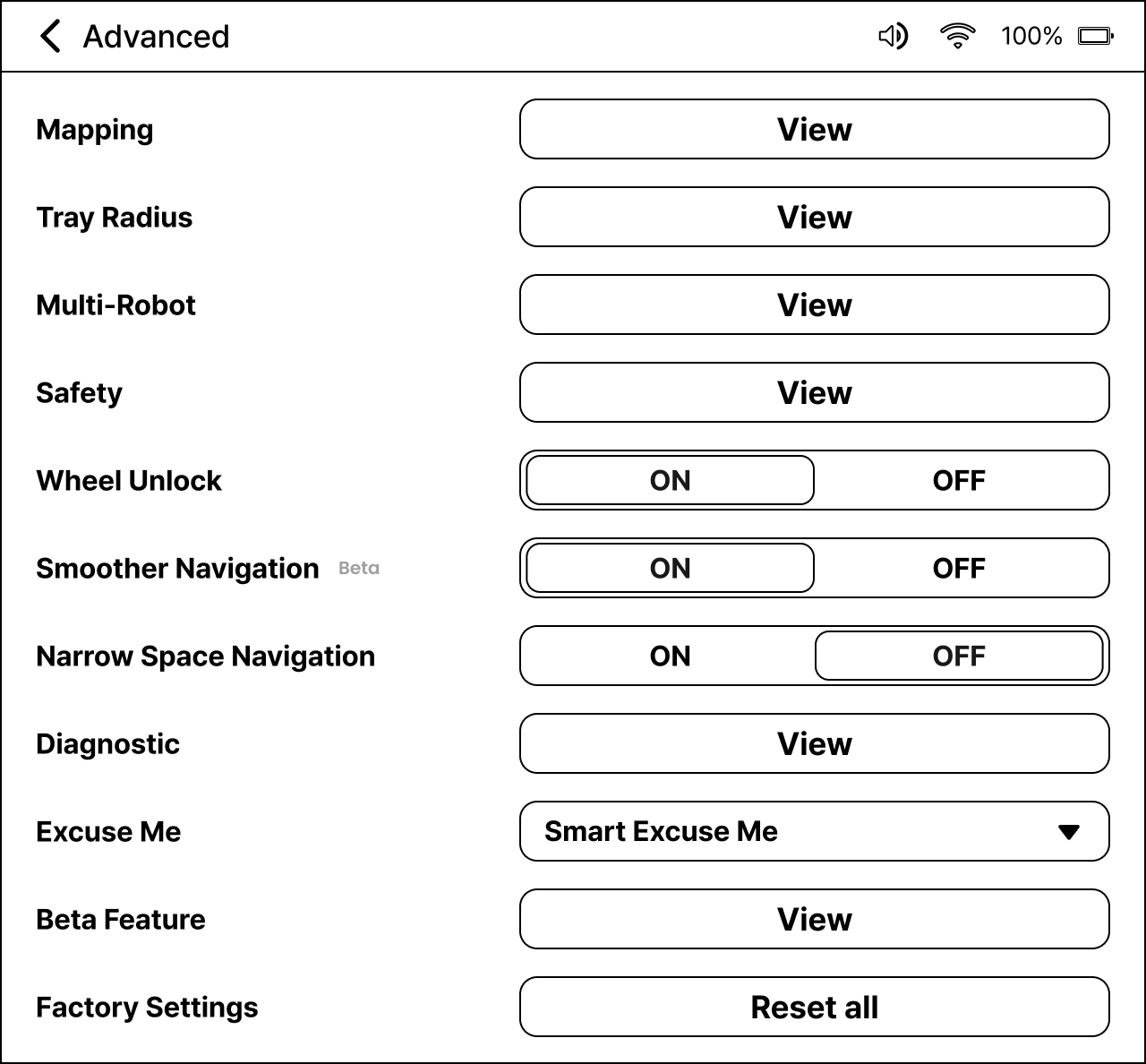
-
You can set the robot's mode. Mapping is used by administrators when mapping is required. By default, it is set to Navigation when using the robot after the setting is complete.
-
If you are using two or more robots, press View to access detailed settings of the multi-robot.
-
It is used when you wish to move the robot by pushing it with your hands.
-
The robot stops near the destination when there is an obstacle at the destination.
-
You can use this feature to drive more smoothly.
-
Please activate this option when your robot navigates in small spaces. The minimum required width for the robot to pass through is 29.5 in (75 cm).
-
An error message appears on the screen when an error occurs.
-
It is used by administrators to report software problems.
-
A voice announcement plays to inform the user when someone is blocking the path.
-
You can try out new features before their official release.
-
Resets the robot. All saved maps and robot information will be discarded.
Reboot
Used to reboot the robot.

Previous pageNext pageCarti 100 Manual